
Turn your memories into a private local
Turn your memories into a private local model, trained on-device on Apple Silicon
Fine-tune a compact AI model on your own vault memories, entirely on your Mac, then load it in LM Studio and ask your knowledge questions offline. You choose the memories, secrets are redacted before training, and the finished model is yours to keep, export, or share.
Fine-tune a compact AI model on your own vault memories, entirely on your Mac, then load it in LM Studio and ask your knowledge questions offline. You choose the memories, secrets are redacted before training, and the finished model is yours to keep, export, or share.
Retrieval finds the right memory and pastes it into context, but it is still fetch-then-answer and needs your vault reachable and online. Training turns the knowledge itself into a model you hold — one that runs on your laptop, works with no connection, and never sends your memories to the cloud. It is the difference between searching your knowledge and simply asking it, the way you would ask a colleague who has been in every meeting with you.
Turn your memories into a private local model, trained on-device on Apple Silicon
Scope training to your whole vault, chosen topics, or a recent time window
Redact secrets and custom terms before any training example is written
Import the trained model into LM Studio with one click
Open 1AIVault and go to the relevant workspace.
Use Train a Personal Memory Model as part of your capture, classify, recall, and connect workflow.
Reuse the resulting memory across your connected AI tools.
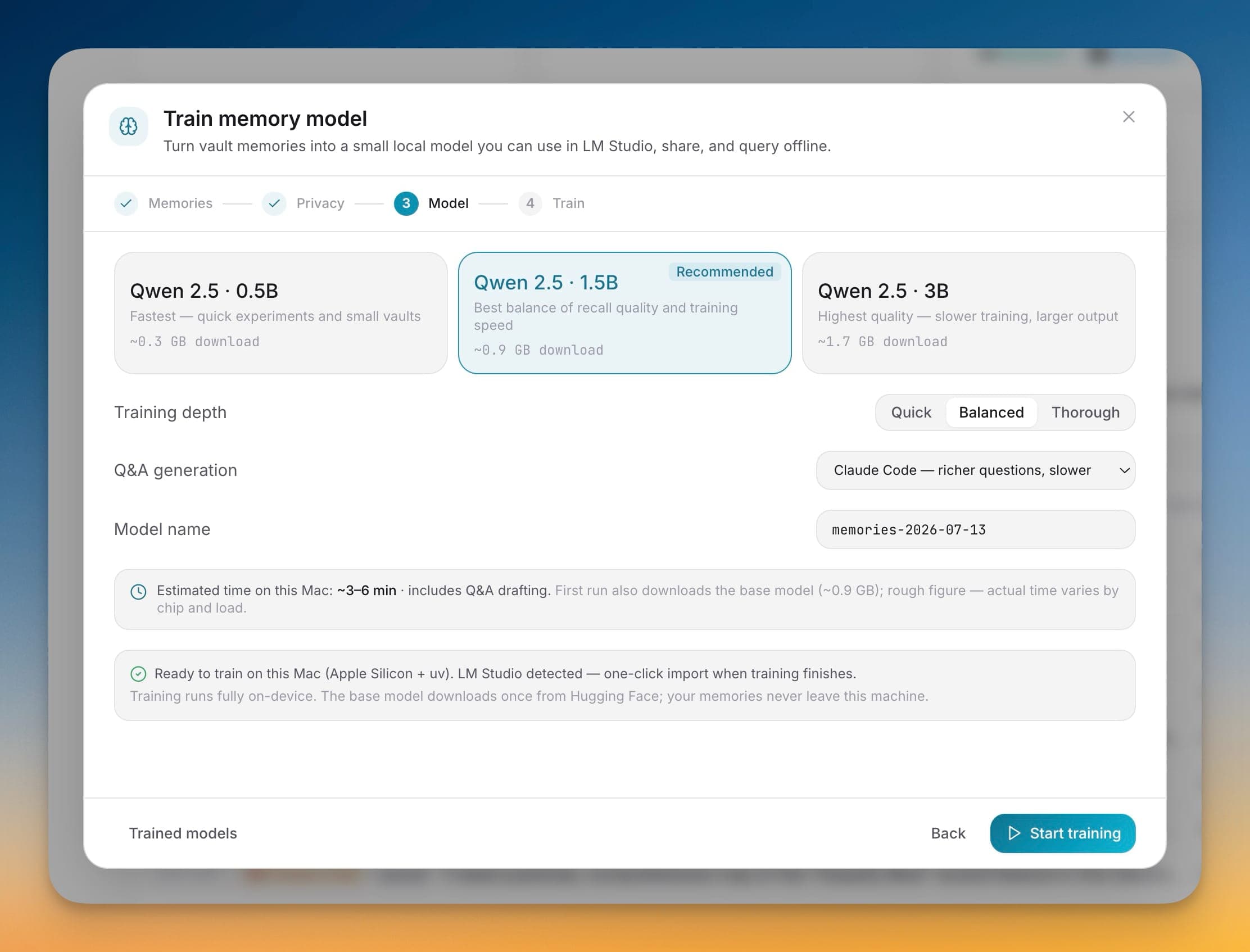
No. On an Apple Silicon Mac, training runs fully on-device — only a base model is downloaded once from Hugging Face. Your memories are never uploaded, and API keys, tokens, and private keys are redacted before any training example is written.
A Mac on Apple Silicon with the uv tool runner installed. LM Studio is optional but enables one-click import when a run finishes; without it you can still export and share the model folder.
You choose Qwen 2.5 in 0.5B, 1.5B, or 3B. 1.5B is recommended as the balance of recall quality and training speed; 0.5B is fastest for quick experiments and 3B is highest quality.
Import it into LM Studio with one click, then pick it from the model list under the 1aivault namespace and ask questions about your memories offline. You can also export it as a ZIP and share it with a teammate.
At least four to start. The wizard previews how many memories are in scope and roughly how many training examples they produce before you commit, so you know what is going in.
Save memories, decisions, preferences, facts, and skills once — every connected AI client recalls them through a single MCP server. Local-first by default; nothing leaves your machine unless you export it.
Learn moreEntry detail keeps user, assistant, system, tool, and terminal-style messages when the source provides full conversation shape.
Learn moreFree mode supports 2,000 entries and 50 topics. Pro removes those caps and unlocks encrypted vault transfer.
Learn moreStart free, import real conversations, and reuse your memory across every AI agent you already use.