
Jun 1, 2026
See exactly which memories your AI is actually reading
Memory Reads turns raw MCP traffic into a timeline grouped by call, flags empty calls as vault gaps, and surfaces the memories your AI tools reach for most. Plus encrypted vault transfer to a new machine and one-click Claude Code & Codex session resume.
You watch Claude Code pull context from your vault. You see the activity feed tick. A memory was read. Then another. Then six more — all in the same conversation turn. Which ones did Claude actually use? Which were noise? Which calls came back empty because the memory the AI was looking for didn't exist?
The activity feed showed you that the AI was reading. It didn't show you what the AI was reading for. Every memory was an undifferentiated event in a stream — useful for confirming the connection works, useless for knowing whether your vault is doing its job.
What changed
Now you can see every memory your AI tools are actually reading, grouped by the call that triggered it, with the empty calls flagged as gaps. Memory Reads is a new tab inside Connection that turns the raw MCP traffic into a timeline you can read.
How it works in practice
See what each AI call actually pulled
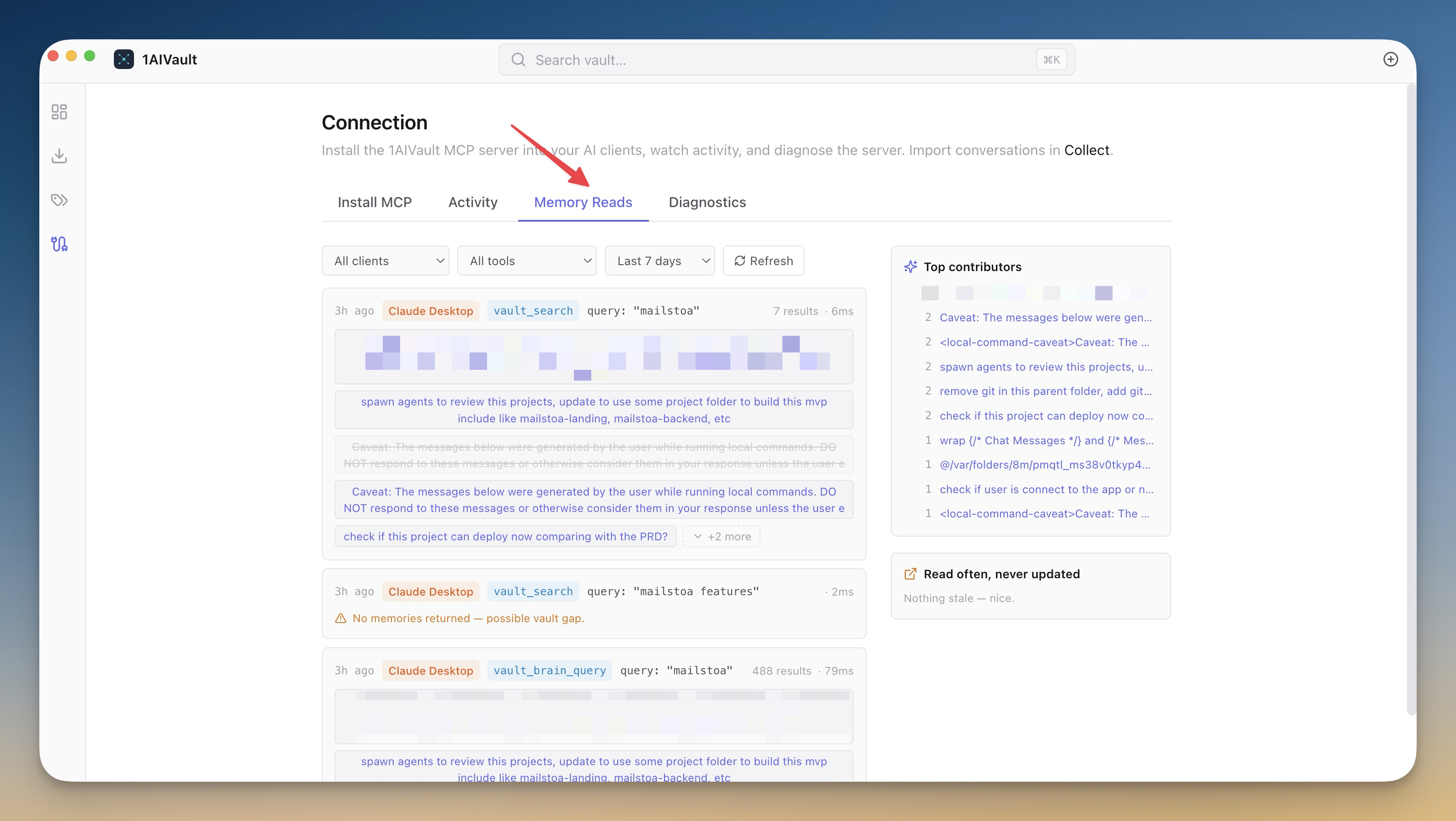
Every MCP call from Claude Desktop, Claude Code, Cursor, Cline, or Codex appears as a row in the timeline. The memories returned by that call show up as chips underneath. Click a chip and you jump straight to that memory in the entry detail view — the round-trip from "the AI used this" to "let me read what the AI used" is one click.
Calls that returned a lot of chips collapse to the top five with a "+N more" expander, so a busy week doesn't drown the view. Pagination shows twenty calls at a time when you're catching up.
Catch the gaps when nothing was returned
When the AI calls vault_search and gets nothing back, that's an empty call — a moment when the AI was reaching for context that doesn't exist yet. Memory Reads flags those in amber. You see, in order, every question your AI asked that your vault couldn't answer. That's your shopping list for what to add next.
Find the memories your AI reaches for most
The Top Contributors sidebar ranks the memories your AI tools pulled most often this week. It's the answer to "which entries are pulling their weight." The "Read often, never updated" callout flags memories used a lot but untouched in 30+ days — likely stale, likely worth a refresh before they mislead the AI tools that rely on them.
Filter to the call you care about
Filter by client (just Claude Code), by tool (just vault_search), or by time window (24 hours / 7 days / 30 days). When you're debugging why an AI tool isn't surfacing the right memory, narrow to that one AI client and that one tool call and the noise drops to zero.
Last used, on every memory
Open any entry and the header now shows "Last used X ago by Source · Nx this week." You know without leaving the page whether the memory is still being touched and which AI tool is touching it. Follow a chip from Memory Reads into a memory, and the "Back to Memory Reads" chip in the header returns you to the same tab and filter you left from.
Move your whole vault to a new machine
You set up the vault, you imported six months of conversations, you tuned the topic classifier, you wrote a dozen skills — and then you buy a new laptop. Or you want to mirror the same context onto a second machine. Or you simply want a backup that's more portable than a database dump.
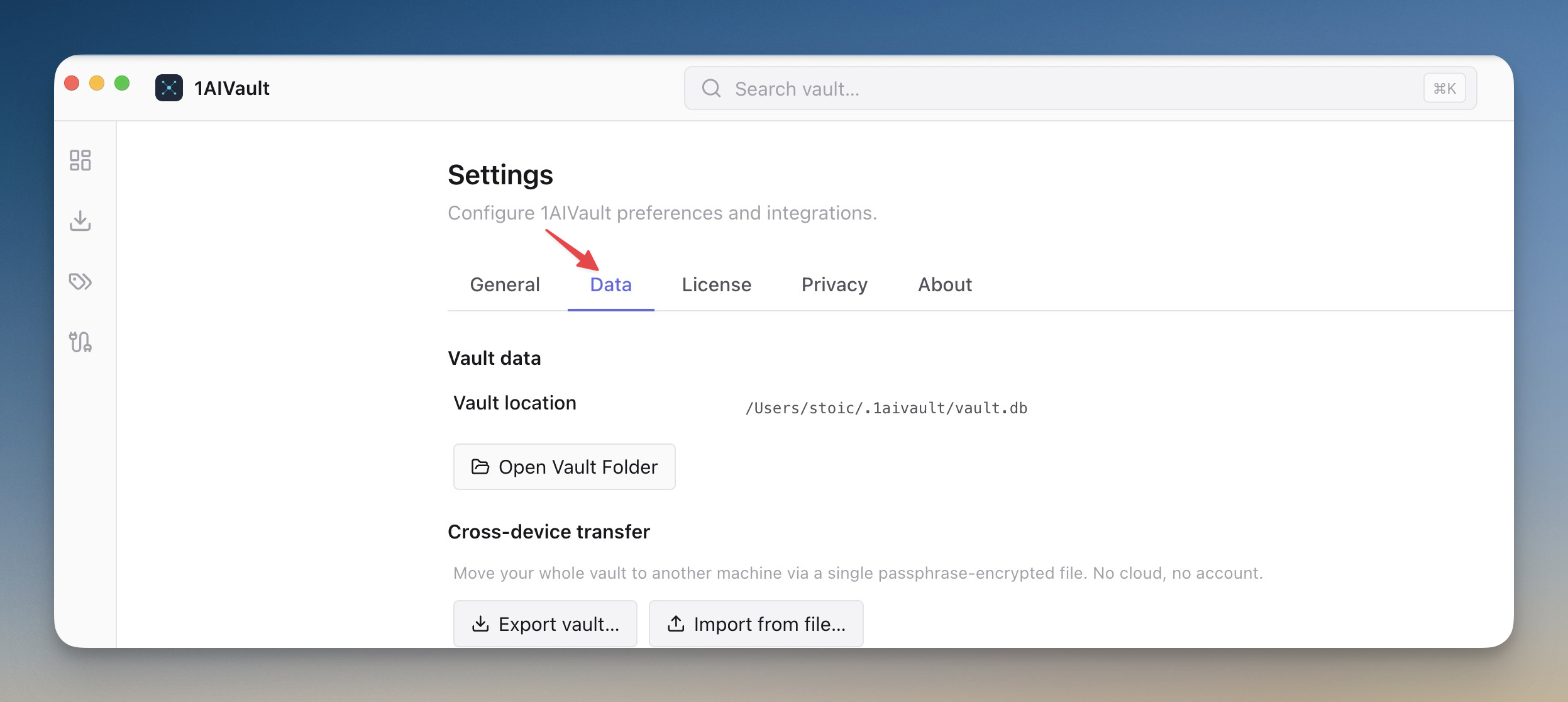
The new Encrypted Cross-Device Vault Transfer (Pro) bundles your memories, skills, topics, links, and settings into a single passphrase-protected file. Drop the file into 1AIVault on another machine, type the passphrase, and your entire vault appears intact — entries, topics, skills, activity, connections.
Pick what to include: memories only, memories plus skills, or the full vault including activity. Before you import, a preview screen shows the bundle's contents — entry count, topic count, skill count, last export date — so you know what you're about to add. If an export or import is interrupted mid-flight, the boot-time crash recovery picks it back up cleanly on the next launch.
The bundle is encrypted with a passphrase-derived key, so even if the file leaks, the contents stay safe.
Resume an AI conversation from where you left off
Entries imported from Claude Code and Codex sessions now show a Resume button in the entry header. Click it and the exact claude --resume <id> or codex resume <id> command lands on your clipboard — paste it into your terminal and you're back in the same conversation. The Session ID chip next to it copies the raw ID for the cases where you want to script the resume yourself.
Long-running investigations stop being one-shot chats. They become threads you can pick up across days.
Before vs after
| Before v1.1.0 | With v1.1.0 |
|---|---|
| Activity feed showed reads — couldn't tell which memories an AI used | Memory Reads groups each MCP call with the memories it returned |
| No way to know which calls came back empty | Empty calls flagged in amber as vault gaps |
| Stale memories hid in the long tail | "Read often, never updated" surfaces them |
| Vault was stuck on one machine | Encrypted bundle moves the whole vault to a new computer |
| Each Claude Code / Codex session was a one-shot | Resume button copies the exact CLI resume command |
Try it
Open the Connection view and switch to the Memory Reads tab. Let your AI tools run for a day and come back — you'll see the shape of how they actually use your vault. The empty-call flags will tell you what to write next. If you're on Pro, try exporting your vault to a bundle and importing it on a second machine to feel the transfer flow end to end.
Download v1.1.0 at 1aivault.com.