
Jul 5, 2026
A redesigned AI memory vault for more tools and cleaner classification
1AIVault 1.6.0 redesigns the vault interface, adds MCP connection support for more AI tools, and gives Classify safer controls for forgotten memory and topic cleanup.
If your AI memory vault has been growing for a while, the problem is no longer only saving context. The harder problem is knowing what is in the vault, which tools can reach it, and which old memories should stay out of normal results. A vault can have thousands of useful entries and still feel uncertain if the interface does not show its shape.
Version 1.6.0 focuses on that daily work. You can see the vault more clearly, connect more AI tools without hand-editing config files, and clean up classification without turning hidden memory into normal memory again.
What changed
1AIVault now gives you a redesigned vault interface, expanded MCP support for more AI clients, and deeper controls for classification cleanup. You can understand the health of the vault before you ask an assistant to use it, then decide exactly which tools should read from it and which memories should stay hidden.
How it works in practice
You start from a vault overview instead of a flat list
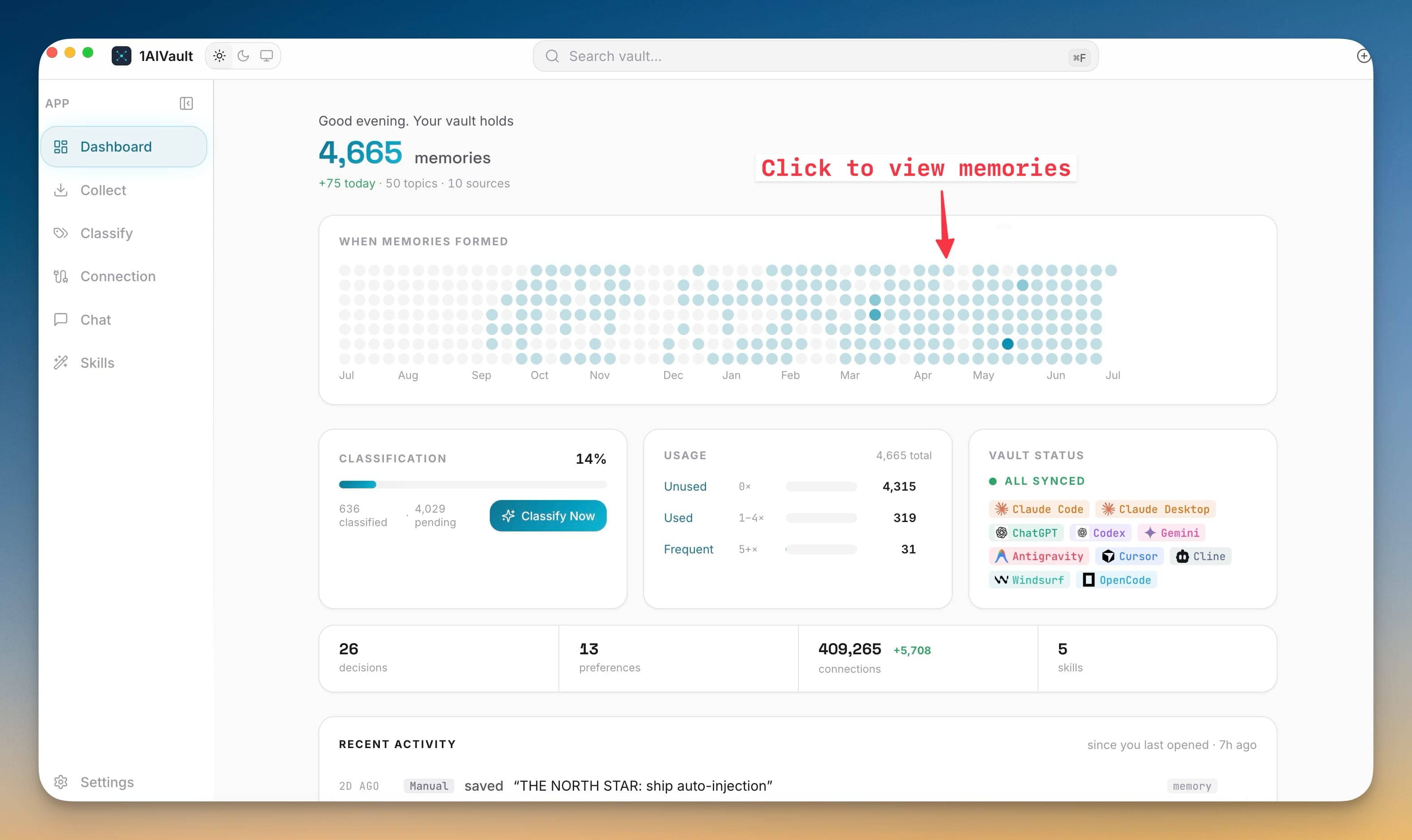
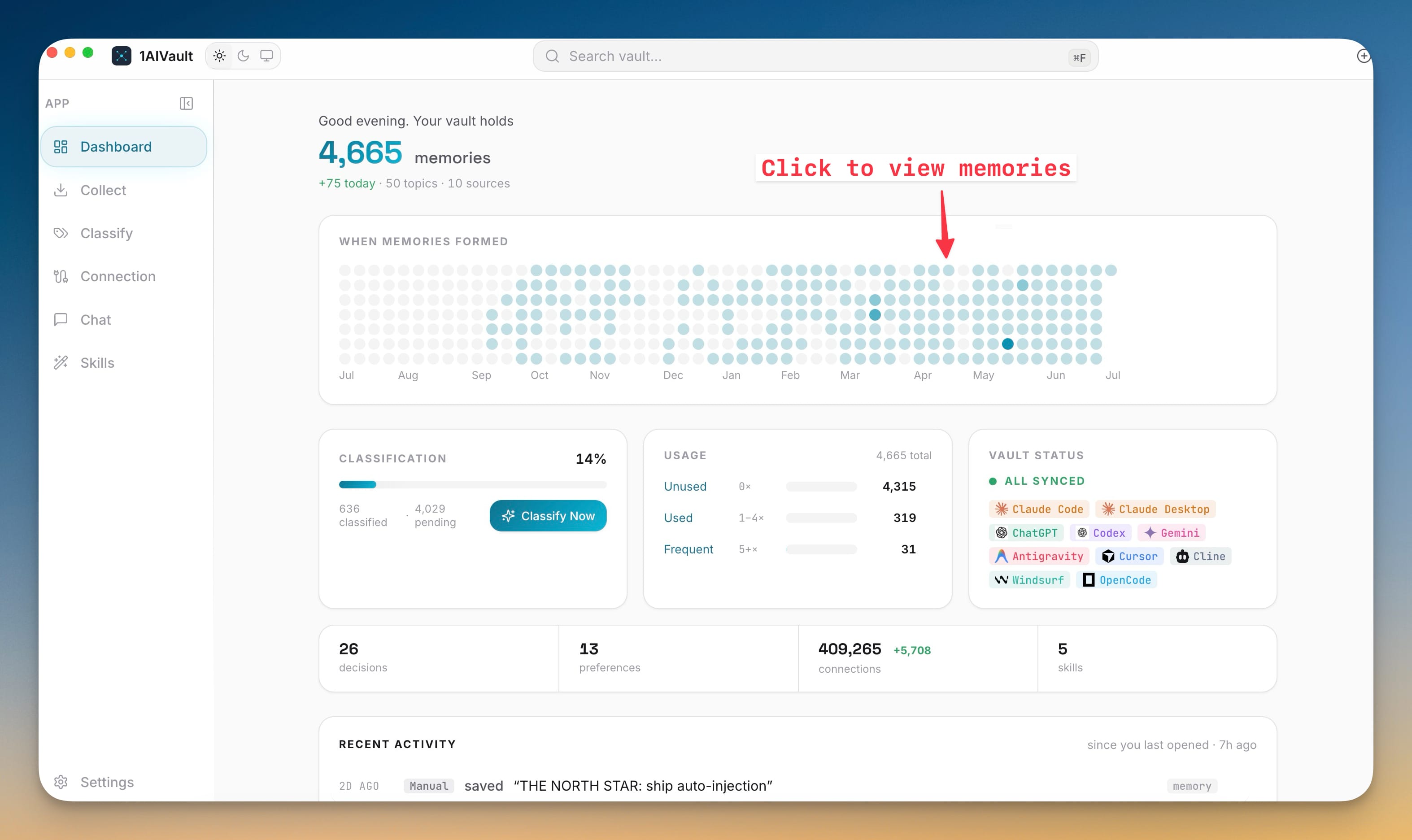
The Dashboard now opens with the memory count, topic count, source count, classification progress, usage buckets, connected source chips, and recent activity. The activity heatmap shows when memories formed, so a busy week or project sprint becomes visible before you search.
When you need a specific memory, the top search field previews matching entries before you commit to the full results view. That matters when your vault has grown beyond a few saved chats. You can answer, "Do I already have this context?" quickly, then open the right entry or move into Classify with the same selection.
More AI tools can connect to the same vault
The Connection screen now covers more of the tools developers actually rotate through. GitHub Copilot, Roo Code, Qoder, Trae, Factory Droid, Kilo Code, Warp, and Augment join the existing Claude, Codex, Gemini, Cursor, Cline, OpenCode, ChatGPT, Windsurf, and Antigravity flows.
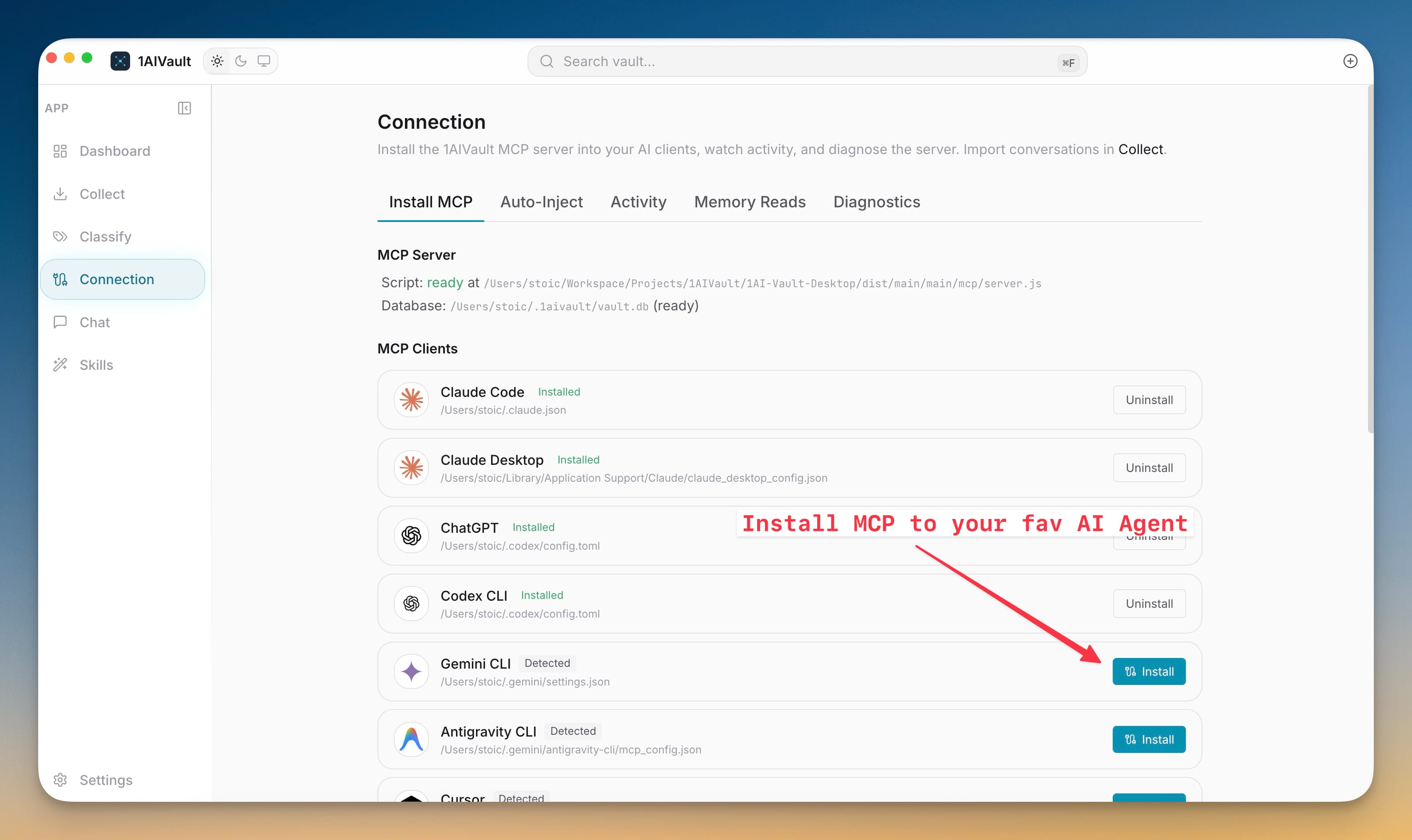
Each supported client gets its own installer path, label, logo, and connection state. Instead of copying a server block into every config file yourself, you can see whether the client is installed, whether 1AIVault is already connected, and where the MCP entry lives. If something looks wrong, Diagnostics and Activity are next to the installer rather than hidden in logs.
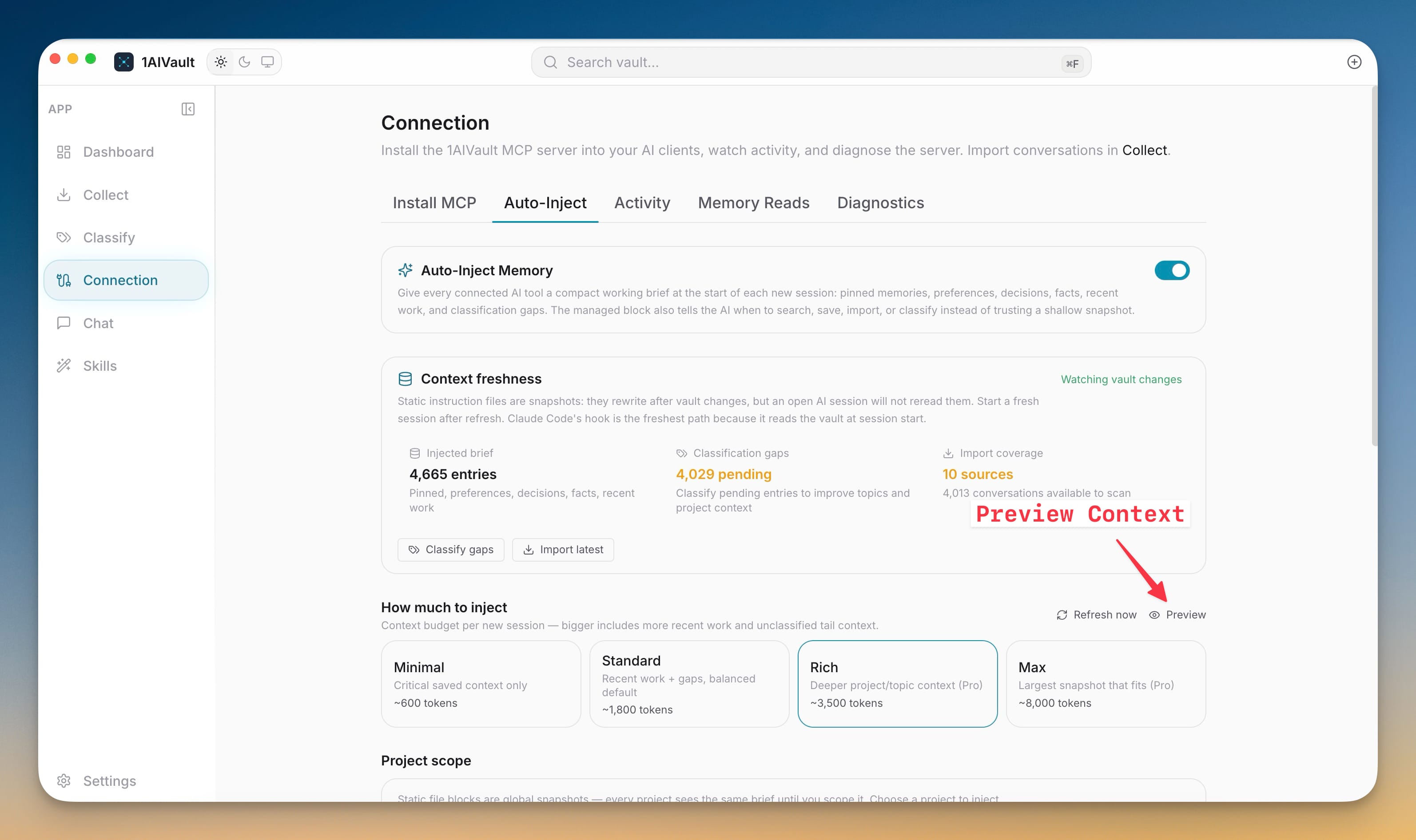
Auto-Inject also gets clearer. You can preview the managed memory context before it is written into startup files, see how fresh that context is, and decide whether a tool should start with minimal, standard, rich, or max vault memory.
Classify can clean up without losing hidden memory
Classify now separates normal work from forgotten memory. The Forgotten tab lists hidden entries and topics, lets you search them, remember them, select multiple items, or permanently clean them up after confirmation. Hidden memory stays out of normal dashboards, topic totals, source counts, searches, and MCP reads until you intentionally restore it.
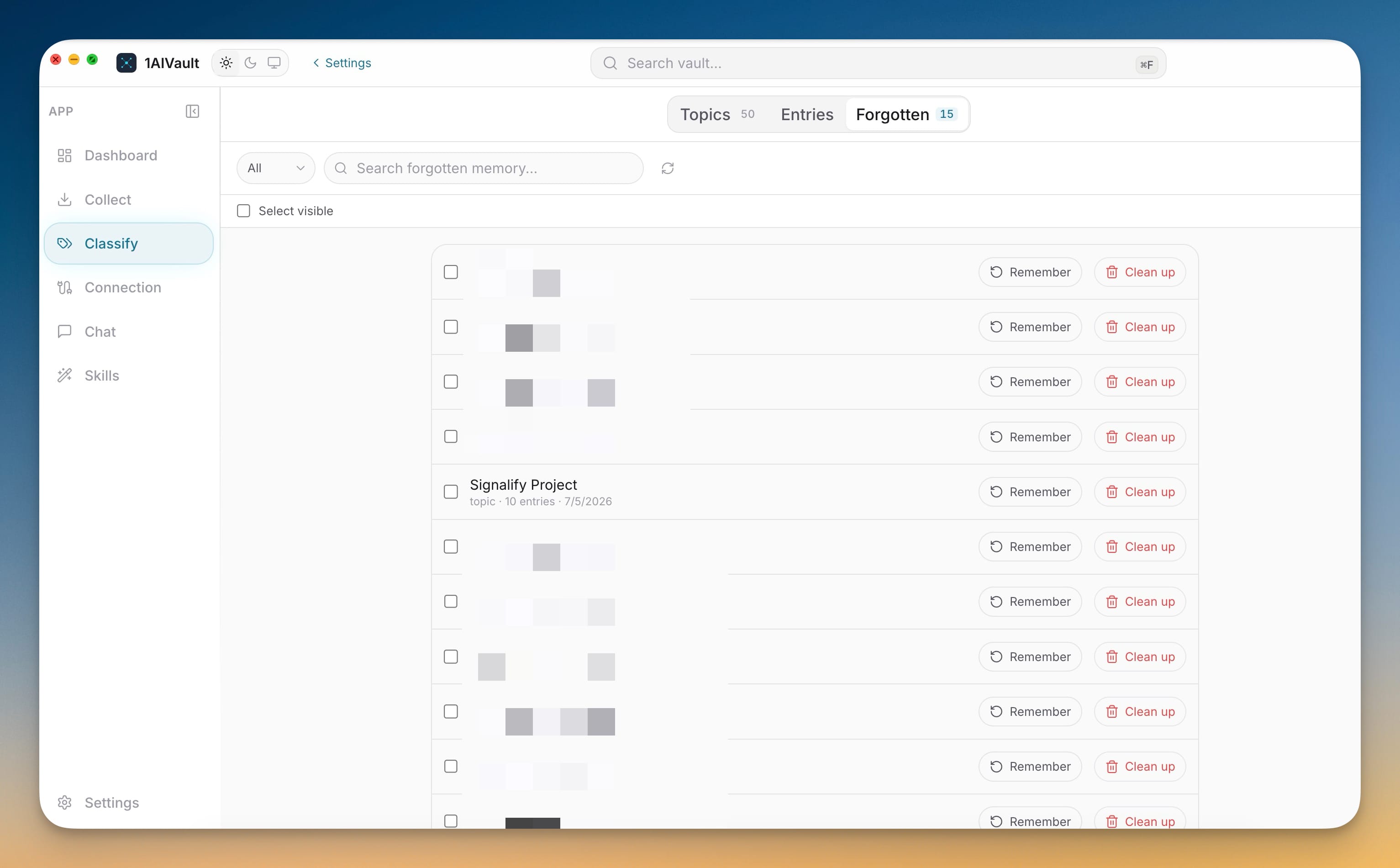
Reclassify All is safer as well. Before rebuilding visible topics, 1AIVault shows the visible entries, skipped forgotten entries, affected topics, and estimated AI usage. Forgotten and archived memory stay preserved while the visible classification map is rebuilt. When a topic has drifted, you can also merge topics and selected entries into a clearer canonical topic instead of dragging related memory around one entry at a time.
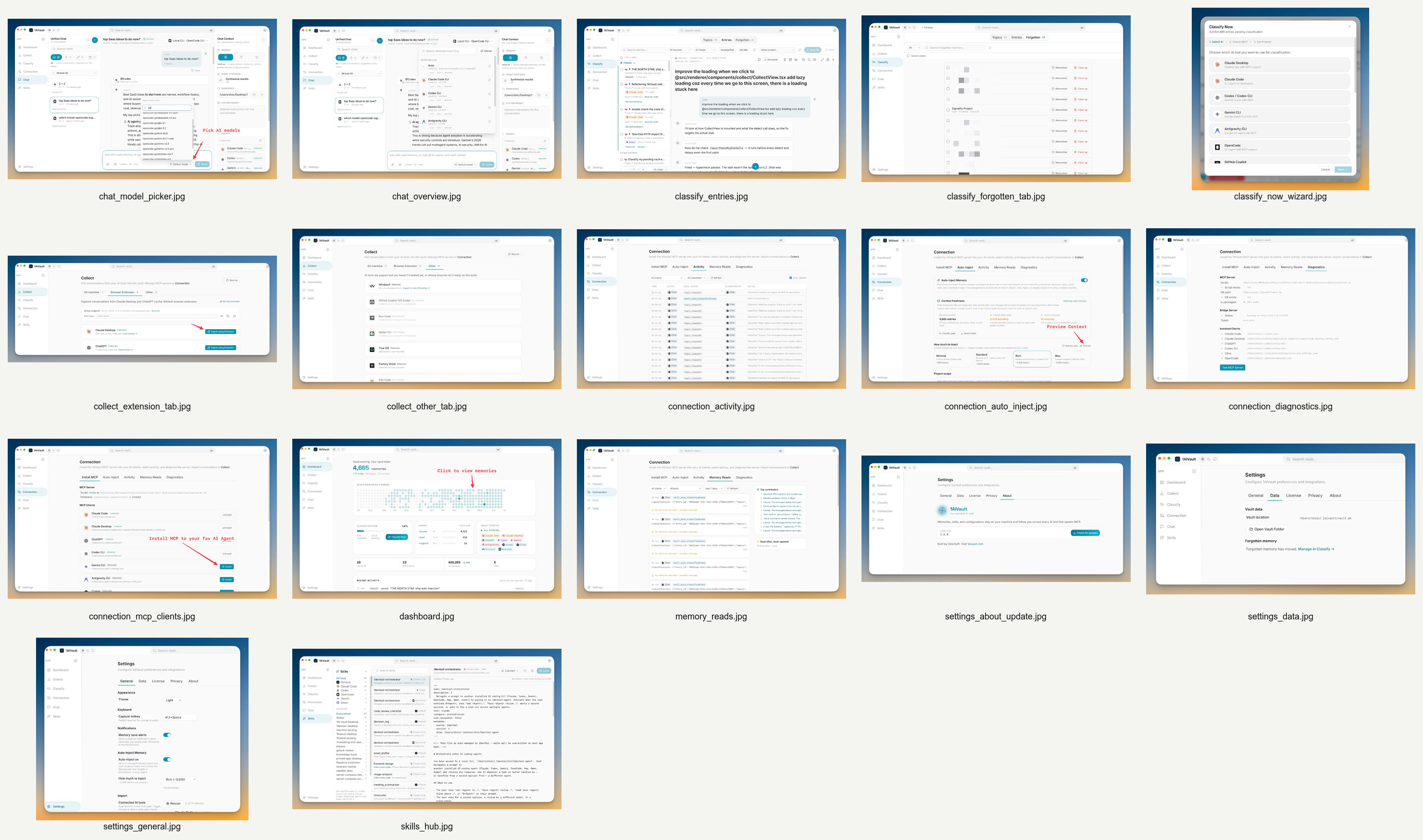
Chat and Skills now feel part of the same memory system
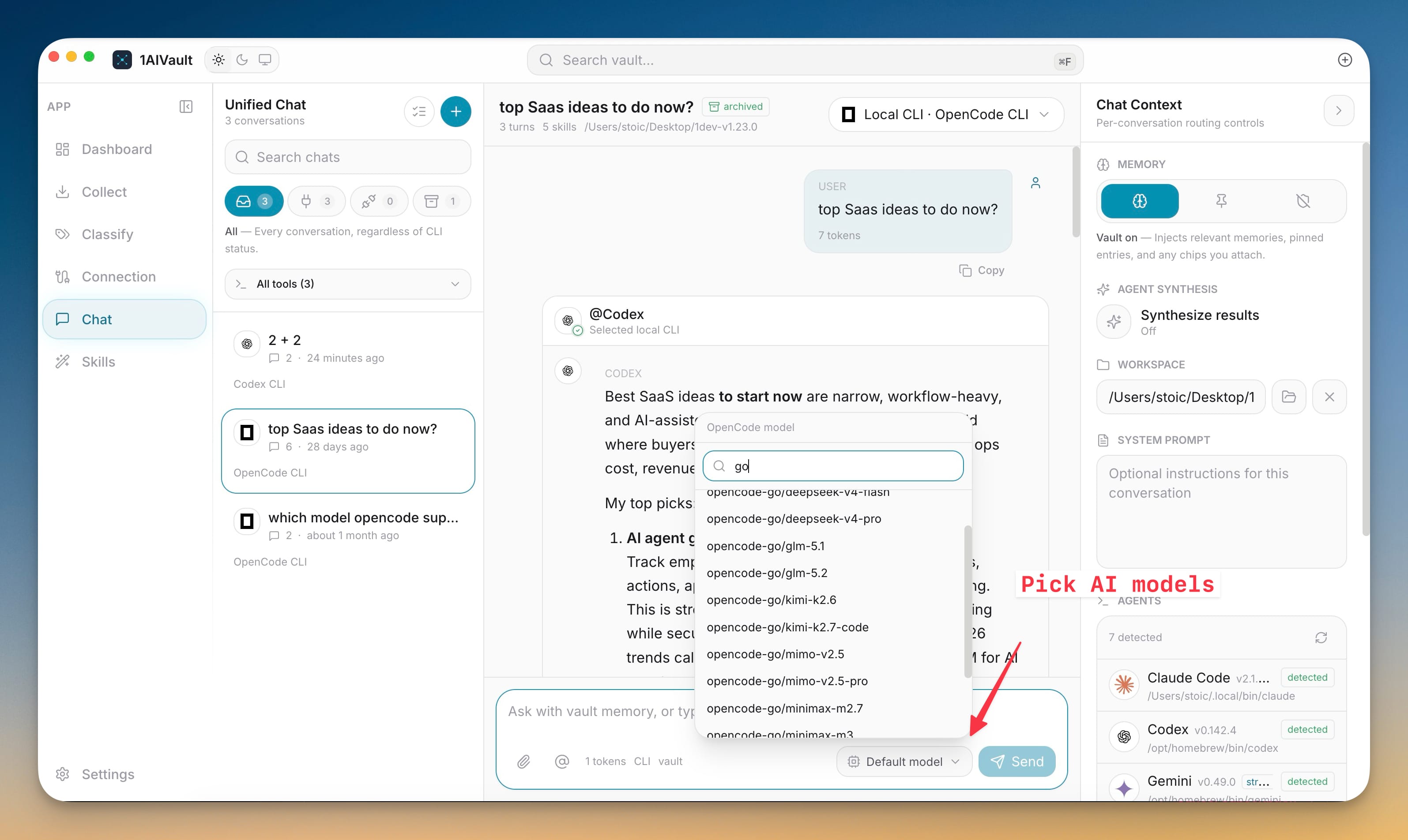
Unified Chat can route through local agents with clearer model selection, and Skills Hub keeps reusable instructions visible across the tools you use. This release is not just a visual refresh; it makes the vault feel less like a background database and more like the operating surface for memory, tools, instructions, and cleanup.
Before vs After
| Before | After |
|---|---|
| You checked separate screens to understand vault size, sources, and classification state. | Dashboard shows memory totals, topics, sources, activity by day, classification status, and recent activity together. |
| New AI clients often meant finding the right config path and editing JSON by hand. | Connection lists supported MCP clients with installed/detected states and installer actions. |
| Forgotten memory was harder to audit without mixing it back into normal results. | The Forgotten tab gives hidden entries and topics their own review, remember, and cleanup workflow. |
| Rebuilding classifications could feel risky because hidden memory was part of the mental load. | Reclassify All previews what will be rebuilt and preserves forgotten and archived memory. |
| Topic cleanup depended on manual one-off adjustments. | Topic and entry merge flows help combine related memory into a cleaner topic map. |
Who benefits most
If you move between several coding agents, the expanded Connection screen reduces the setup gap between the tool you want to use and the memory it should know. A new client can join the vault without becoming a separate memory island.
If your vault already has thousands of entries, the redesigned Dashboard and search preview help you orient yourself before opening details. You can see whether memory is growing, whether topics need work, and whether tools are actually connected.
If you curate sensitive or outdated context, the Forgotten tab gives you a review queue instead of forcing a choice between normal recall and permanent deletion.
Try it
Download 1AIVault 1.6.0, open the Dashboard, then visit Connection and Classify. Connect the AI clients you use today, preview what Auto-Inject will write, and clean up the memories that should no longer reach normal search or MCP reads. The result is a vault that is easier to understand before your next AI session starts.