
Jul 12, 2026
Lock Your AI Memory Behind a Passphrase
Your AI memory vault is local-first — but local isn't the same as private. Vault Lock puts a passphrase in front of it, and while locked even MCP-connected AI tools can't read a thing.
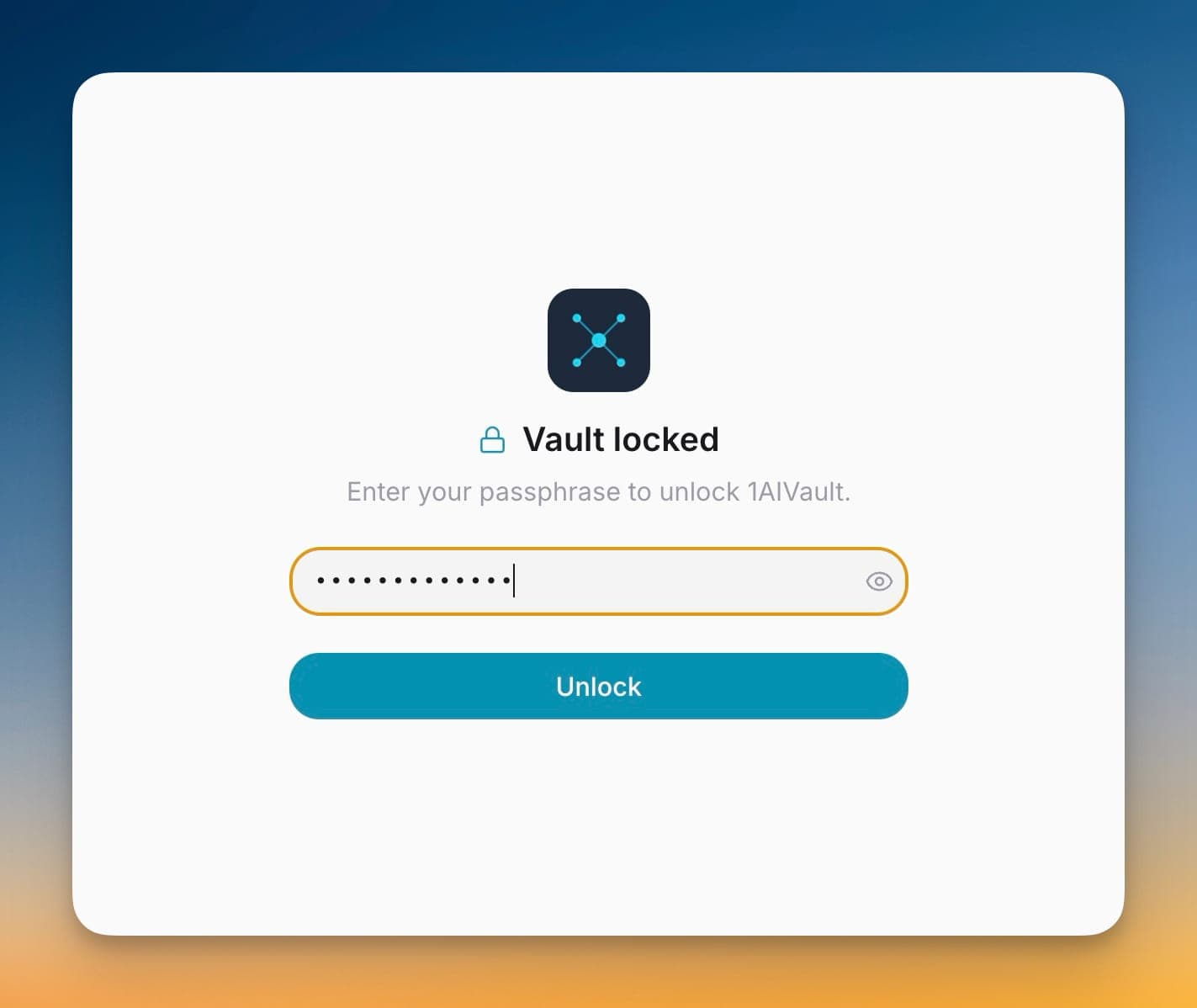
Your 1AIVault vault is the richest record you own of how you actually work with AI — every conversation, decision, and half-formed idea you have ever handed a tool, gathered in one place. It lives on your machine, local-first, which is exactly why you chose it. But "on your machine" and "private" were never quite the same thing. Anyone who opens your laptop can read the whole vault. So can any AI tool left connected in the background. For a scratchpad that would not matter. For the running memory of how you think, it does.
You may have reached for a workaround already — quitting the app whenever you walk away, or simply trusting that nobody will look. Neither really scales. Quitting the app kills your running imports and MCP connections, and trust is not a security model. What was missing was a lock that treats the vault the way a password manager treats your credentials: sealed by default, opened deliberately.
Now you can lock the vault behind a passphrase
Turn on Vault Lock and 1AIVault behaves like a password manager: while it is locked, neither the app nor any AI tool connected over MCP can read your vault until you enter your passphrase. Your memory stays sealed until you choose to open it.
How it works in practice
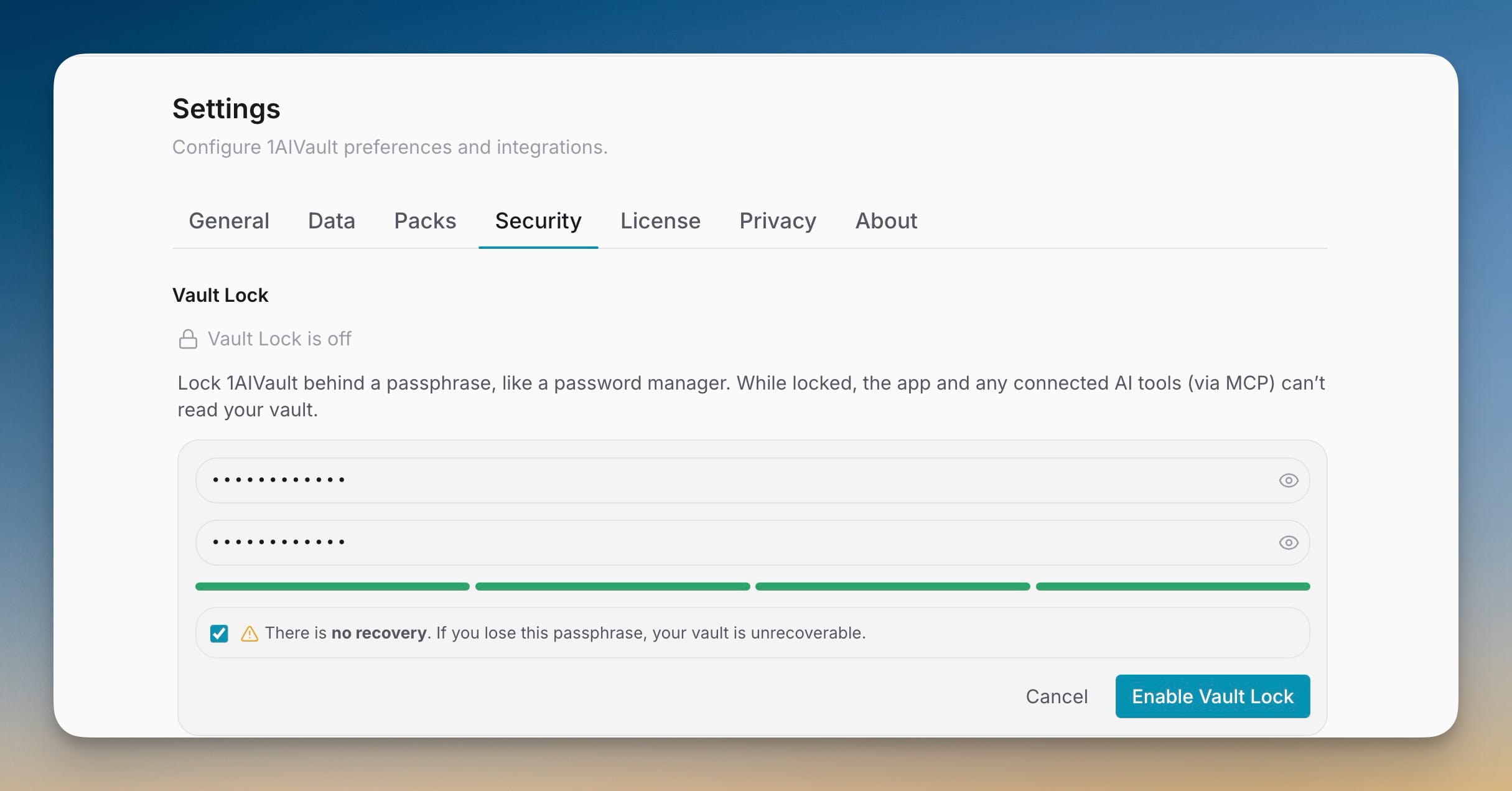
Set a passphrase in Settings → Security
Open Settings → Security, type a passphrase — a strength meter guides you — and confirm it. The screen makes one thing unmissable: there is no recovery. 1AIVault verifies your passphrase with an Argon2id key derivation and stores only a hash of the derived key, never the passphrase itself, so a lost passphrase means the vault stays shut for good. Tick the acknowledgment and hit Enable Vault Lock. Treat the passphrase like a password-manager master key, because that is effectively what it is.
The lock covers your AI tools, not just the window
This is the part that actually matters for a memory vault. Vault Lock is not a screen saver draped over the interface. The locked state is written to the same settings that 1AIVault's out-of-process MCP server reads, and while you are locked that server refuses every tool call. So a Claude Code or Cursor session that would normally pull context from your vault gets nothing back until you unlock. Your memory does not quietly leak to an agent just because the agent was left running overnight.
Picture the common case: you have a Claude Code agent grinding through a long task, and you close the lid and head to lunch. Before Vault Lock, that agent could keep reading your vault the entire time. Now, once the vault auto-locks, the same agent's memory reads come back empty until you return and unlock — work pauses on your terms, not on an open door.
Unlock when you sit back down
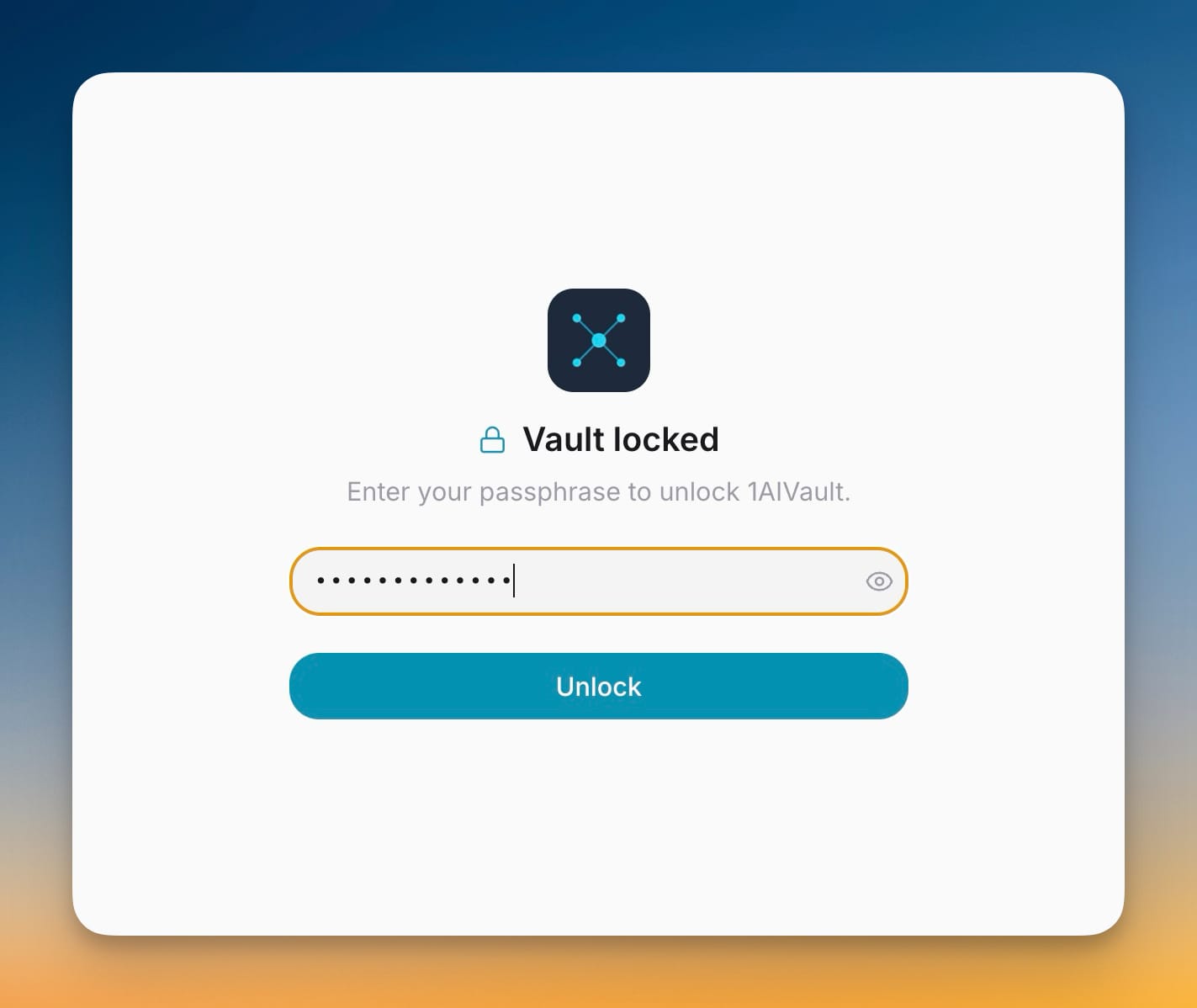
When the vault is locked — on launch, or after it auto-locks — you get a single unlock screen. Enter your passphrase and you are back in, exactly where you left off. Nothing to reconfigure, no sessions to rebuild.
It re-locks itself when you step away
You do not have to remember to lock it. Vault Lock re-arms after a stretch of inactivity — fifteen minutes by default — and it starts locked every time the app boots, so an enabled vault is never sitting open by accident. And because repeated wrong guesses are rate-limited, nobody unlocks it by hammering the passphrase field.
What it does — and doesn't — protect
It helps to be precise about the boundary. Vault Lock is an access control, not at-rest disk encryption: it stops reads through the app and the MCP server, which is the surface your AI tools and a passing glance actually use. It is not built to defend a stolen, powered-off disk against forensic recovery — a heavier guarantee that was deliberately left out of scope. For the everyday threat that actually applies to a memory vault — an open laptop and always-on agents — it is exactly the right lock.
Before vs after
| Situation | Before | With Vault Lock |
|---|---|---|
| Someone opens your laptop | Vault readable by anyone at the keyboard | Passphrase required to read anything |
| A background MCP tool | Can pull vault context anytime | Refused every read while locked |
| You step away from the desk | Vault stays open | Auto-locks after idle (15 min default) |
| The app launches | Vault open immediately | Starts locked until you unlock |
| You forget the passphrase | — | No recovery — by design |
Who benefits most
Shared or shoulder-surfed machines. If your laptop is ever open around other people — a shared desk, a coworking space, a home you do not have entirely to yourself — Vault Lock keeps years of accumulated AI memory from being one click away.
Anyone running always-on agents. If you keep MCP-connected tools live in the background, the lock draws a hard line: a running agent cannot read what you have not unlocked.
Privacy-first users. It fits the reason you are on a local-first vault in the first place. One honest note: Vault Lock is an access lock, not at-rest disk encryption — it gates reads through the app and the MCP server, which is the surface an AI tool actually touches.
Try it
Update to the latest 1AIVault, open Settings → Security, and set a passphrase. Your vault — and everything your AI tools remember through it — stays yours to open.